How to: Solve the ‘Ctrl-Space (auto-complete) not working’ problem in Eclipse
This problem is known by various names such as:
- Ctrl-Space doesn’t do anything in Eclipse!
- Why can’t I get auto-complete to work properly in Eclipse?
- I’ve just set up a new University computer and things don’t work like they do on my laptop (maybe that one’s just me…)
It’s actually very simple to solve, but the problem is actually nothing to do with Eclipse. First of all, let’s see what the problem is:
You’ve just installed Eclipse, are starting to do some programming in it, and want to use the very handy auto-complete feature. So, you type part of a function name and press Ctrl-Space, waiting for the magic to work and the rest of the name to be automatically typed….but it doesn’t happen!

In the image above (which unfortunately doesn’t include the cursor) I had typed ST, and pressed Ctrl-Space to autocomplete it but nothing happened.
When trying to fix this myself, I went in to the Eclipse options (Windows->Preferences, then General->Keys) and tried to find the command for auto-complete. Helpfully, it’s not called autocomplete or anything like that – it’s called Content Assist. This showed me that, as I expected, Content Assist was assigned to Ctrl-Space:
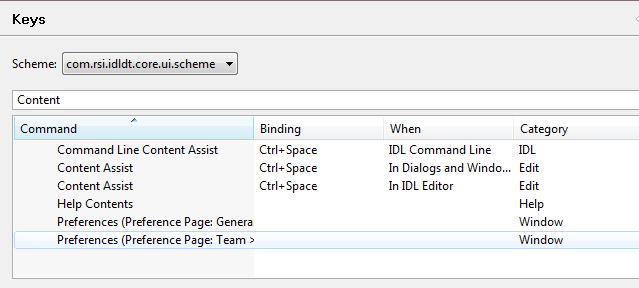
So why wasn’t Eclipse picking this up? I tried setting the key for Content Assist manually, but when I deleted the text in the key binding box and pressed Ctrl-Space, it showed that only Ctrl registered – somehow the spacebar press was being ‘eaten up’ by something else. What could it be?
The simple answer is: the Windows language services utility – obvious really! This seems to be set by default (at least some of the time) to switch between languages by using Ctrl-Space. On my personal computer I only have one language set up (English (UK)), but on the university computers there are loads – French, German, Italian, Chinese (simplified) etc. You can find out what languages you have set up by going to Control Panel -> Region and Language -> Keyboards and Languages (tab) and then Change Keyboards (again, how obvious…). You’ll see a list of languages installed – remove any that you don’t want (click the language and then click the Remove button) until you only have the ones you want left. That fixed it for me, but you can also check the Advanced Key Settings tab to make sure that none of the keyboard shortcuts that are set include Ctrl-Space.
Once you’ve done that, Ctrl-Space should work nicely
If you found this post useful, please consider buying me a coffee.
This post originally appeared on Robin's Blog.
Categorised as: Computer Help, Computing, IDL, Python, Windows
I have the same problem here, using win7, same problem with all versions of ecclipse,tried helios, ganymede, indigo, but wont budge. I have tried all the above options, (tried removing all keyboards, removed all key associations from advanced tab, everything possible) but still ctrl+space not working for me, i think some other program has hijaked my keys, can you please let me know how to find out which program is using up my ctrl + space
Hi Dude,.. THANK GOD FIXED IT, i restarted the machine after doing all the above steps, now its working fine
Thank you very much.. Have been struggling Since I installed eclipse on win 7.
At last thanks to you, I am again in love with win 7.:)
Thanks dude, you saved my life!
I’ve been trying to solve it for days, now it’s working!!
Thanks
Thanks a Mill.
In my case My eclipse was working fine on Ubuntu 10.04 and I did an upgrade to 12.04LTS. With the upgrade the CRTL+Space has been assigned to a system task.
How to:
just type ‘ibus-setup’
home:$ ibus-setup
Under General tab –. Keyboard shortcuts find ‘CRTL+Spcae’ defined.
Change it to something else Ex: CTRL+ALT+Space
Apply and close.
You are done!!!
WOOOHOOO , thanks man that was awesome
Thanks a lot Robin. It worked for me.
Yes, It is worked. Thank You.
Excellent. It is working fine. Because of this I have faced lot of issue and impact on my development. Thanks
Yeahh,, thanks man.. It is working for me..
Thanks
follow the above step and restart it.it worked for me
Thanks
@Asanke: THANK YOU!!
you made my day!
on ubuntu studio the ctrl-space was assigned at the operating system level to change the keyboard input method. I had to change the Next Input Method in Settings Manager–>Keyboard Input Methods–>Next Input Method field.
I changed it from ctrl-space to ctrl-alt-shift-space.
Thanks, that worked 🙂
I am not able to write any Chinese character or Japanese character in eclipse juno and widows 7 .Please any one can help me .
Thanks a lot. The last paragraph saved my day.
[…] Source : https://blog.rtwilson.com/how-to-solve-the-ctrl-space-auto-complete-not-working-problem-in-eclipse/ […]
down vote
This happend to me too.
For some reason Kepler changes the settings for Content Assist on Juno workspaces. Checking the Java Proposals checkbox in Preferences -> Java\Editor\Content Assist\Advanced should resolve this problem
Checking the Java Proposals checkbox in Preferences -> Java\Editor\Content Assist\Advanced should resolve this problem.
I had the same problem on Ubuntu 12.04 LTS. Ctrl+space did not activate Content Assist, although it was properly configrued as described above by Robin.
Simillary the problem had nothing to do with Eclipse – just disable iBus (right click -> Input methods -> click “None”)
For Linux Ubuntu / Lubuntu desktops you will face similar issues. To fix the issue you should install the dconf editor via
sudo apt-get install dconf-editor
Once you install open up the dconf editor and navigate to desktop > ibus > general > hotkey and remove the Control + Space key from the trigger and triggers settings. Make sure you keep the empty [] brackets.
Thanks! I had 2 regional languages. Chinese and US. Removed chinese Keyboard & restarted eclipse. Now ctrl+space works fine!!! 🙂
I solved my problem with your answer
Awesome Answer… Working Fine.. Infinity Thanks to you…
This made my day! Awesome! Thanks a lot!
Java Proposal solved my problem on Eclipse. Thanks Ankit
Thanks dud.
It really solve my problem…
Aprete la combinación de CTRL+Espacio no me funcionaba, resulta que esa combinación es para cambiar el idioma y cada vez q lo apretaba se cambiaba el idioma, deshabilite esa opción del sistema operativo y funciono..
Thanks Robin. With your suggestions I fix the problem in a a couple of minutes. Restart of my Win 7 wasn’t required
Hey! worked for me! thank you so much 🙂
Thank you Asanke!!!! The author should include this information in the article for all the linux users….
Using: Ubuntu 14.04
WM: LXDE
I assigned the keyboard shortcut binding to java code assist in stead of removing a language and now its working fine, thanks
ibus-setup > Changing keyboard shortcut
fixed this problem for me on zorin 9.
Thank You! Dude, you saved my life!
Thanks for the info, i was looking it for hours 🙂
Finally ,,,, it worked for me too. thanks 🙂
Thanks for the info. This worked for me –
“check the Advanced Key Settings tab to make sure that none of the keyboard shortcuts that are set include Ctrl-Space”
Thanks. it worked 🙂
Thanks a lot for the hint. In my case, content assist was not having any key binding for Java API Proposals, and Java Type. After I added Ctrl+Space, it started working 🙂
Thanks a ton!!
[…] Nov 15, 2011 … This problem is known by various names such as: Ctrl-Space doesn’t do anything in Eclipse! Why can’t I get auto-complete to work properly in Eclipse? … programming in it, and want to use the very handy auto-complete feature. … sure that none of the keyboard shortcuts that are set include Ctrl-Space. How to: Solve the ‘Ctrl-Space (auto-complete) not working’ problem … […]
Thank you!!
Thanks Asanke! You were right, this ibus-setup thingie was the issue. Now solved the eclipse ctrl-space works as expected. Much obliged.