This post has become quite popular – so I’ve updated it with a bit more detail, plus some people’s experiences from the comments. If you find it useful then please leave a comment – or, even better, if I’ve saved you time and money then donate a bit to cover my hosting costs.
You may find, as I have done recently, that a network printer installed on a Windows Vista starts suddenly showing as Offline even when other machines on the network can access it fine. I originally thought it would be an IP address issue, but it turned out not to be anything to do with that. In fact, the solution was far simpler – but also slightly strange…
It turns out that Windows Vista automatically enables SNMP support for networked printers, and if it can’t get a response to a SNMP message then it assumes the printer is offline. SNMP stands for Simple Network Management Protocol and is a way of getting information from network devices (such as routers, servers and printers), mainly for the purposes of finding out if there are any problems with the devices. A number of networked printers implement SNMP, and will respond to SNMP queries with information, but some don’t. My printer (a fairly old Lexmark T640) is one of the ones that doesn’t implement it – so of course Vista will never get a response to a SNMP message. The result of which is that the printer will start showing as offline at a seemingly random time because Vista has just sent a SNMP message to it, and it hasn’t responded.
Thankfully there is a simple way to fix this – and it just involves telling Vista not to try and communicate with the printer via SNMP. Simply right-click on the printer in the Printers window, choose the Ports tab, and select Configure Port. At the bottom you will see a checkbox saying something like SNMP Status Enable. Untick that, and the printer should start showing as online again.
That should be it…but here are a few other tips/observations from people who’ve commented on this post:
This has been found to work on a variety of versions of Windows including
Windows Vista
Windows 7
Windows 8
Windows 8.1
Windows 10
Windows Server 2003
Windows Server 2008
Windows Server 2012
You could need to be logged in as an administrator before you can change the SNMP status
If you find that this solves it for a bit but it keeps going offline again then editing the registry at HKEY_LOCAL_MACHINE\SYSTEM\CurrentControlSet\Control\Print and adding a new DWORD called SNMPLegacy with the value 1 and restarting may solve it (thanks Coxy)
The issue can be caused even when the printer does support SNMP, but somehow the SNMP communications aren’t getting through – for example, due to a firewall or port configuration issue somewhere on the network (thanks Jonathan)
Setting the SNMP ‘group name’ to “public” can also help (thanks PP)
The first piece of software in my series of essential OS X software is a very handy tool which reminds you when you haven’t attached a file in an email when you intended to. How does it do this? Well, it searches for key words in the email and reminds you if, for example, you use the word attached without attaching a file.
This sort of functionality is already present in a number of other email apps such as GMail and Thunderbird, but isn’t present by default in OS X’s mail application. However, this free tool will add it. Simply download it from http://eaganj.free.fr/code/mail-plugin/ and follow the instructions (just make sure you download the beta version if you’ve got Snow Leopard, or it won’t work!)
I have recently discovered PyDev – a Python IDE which runs within Eclipse. Although I’d given up on big all-singing, all-dancing IDEs a few years ago I’m really liking it. The Ctrl-Space completion is very handy, as are the number of refactorings that are available from the menus.
Anyway, I use the Enthought Python Distribution (EPD) on my Mac, as it provides Python with a number of important scientific libraries (NumPy, SciPy, Matplotlib etc) in an easy-to-install package for OS X. It’s really handy – and is free for academic use. The only problem with using EPD is that applications can sometimes get confused between EPD and the Apple-provided version of Python.
It turns out that PyDev is one of those applications. If you follow the PyDev installation instructions, it suggests you click the Auto Config button to configure your Python interpreter. This will not work for EPD! Instead, (after deleting the interpreter you have configured already, if you’ve already configured one), click the New button and then fill in the fields as below:
Interpreter Name: This is just a name to refer to the interpreter by – it can be anything you like. I tend to use EPDPython.
Interpreter Path: You’ll need to find the python executable provided by EPD. This is normally located somewhere like:
The best way to find it is to navigate from /Library down the path, choosing the most sensible folder at each stage. When you get to the Versions folder, make sure you choose the latest version (highest number) folder, and then choose the bin directory and then the python executable. Once this is done, PyDev will automatically find the relevant folders to add to your PYTHONPATH, and everything will be working.
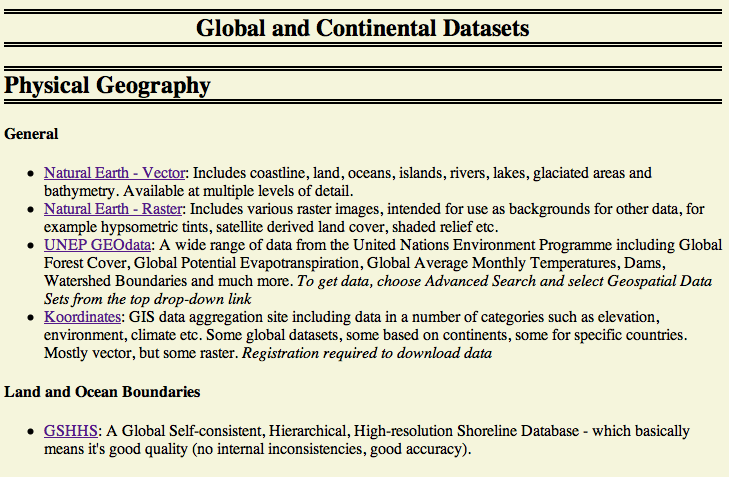
For a long time I have been searching for a simple, easy-to-use, comprehensive list of freely available GIS datasets that I can use in my academic work – or for any other non-commercial purposes (eg. teaching, ‘just for fun’ applications, etc). All of the lists that I have found have been out-of-date, riddled with adverts, or specific to one field or country, so…I decided to make my own:
The screenshot above just shows the first few links – there are many more, split in to categories by field (for example, natural disasters, population, ecology and administrative boundaries) and by geographical area (for example, global, UK, Puerto Rica). The site is being updated regularly, and I am frequently running a checking tool to ensure that all of the links still work. It is intentionally designed to be one simple page – my thoughts being that it is far simple to search for a dataset using Ctrl-F (the in-browser search facility) than navigating around a slow database-backed site.
I think that screenshot is enough really, but just to give a few more pieces of information:
In the screenshot above you can see twenty-one separate pieces of software whose name starts with TOSHIBA. These are 21 different pieces of software which were supplied, by Toshiba, as part of the original build of the machine. I suspect the majority of them run at startup, although I haven’t fully investigated that.
Many of the pieces of software seem not to be very important or useful – for example TOSHIBA ReelTime? What is that? Or TOSHIBA Online Product Information – since when has anyone used anything like that? As for what on earth TOSHIA Value Added Package is, I don’t know, but I suspect it isn’t adding much value to my use of the computer!
As well as the software above (nicely screenshotable (yes, that is a word) because they’re all next to each other in the list), the laptop came with a number of other applications including: Bing Toolbar, Ebay, TRORMLauncher (seems to be something else from Toshiba) and a number of others.
I wanted a computer to use – not a computer filled with junk like this. I think the best thing to do is probably to wipe the machine and reinstall a clean system, but I should not have to do that with a new computer. If any computer manufacturers are reading this (unlikely, but possible) then please stop doing this.
(For the record, I was given this computer under a university scheme, I did not purchase it myself – if I had I wouldn’t have gone for a Toshiba!)
Summary: Cheap, lots of features, can resell. Servers located in US (may be a problem) and expensive for dedicated servers.
Details: Register at Dreamhost. If you use the promotion code RTWILSONBLOG you will get $50 off your hosting package, and a free lifetime domain registration – yes, really! The details of their standard package is available here.
I’ve had my own domain (rtwilson.com) and associated website and blog for around a year and a half now, and I’m very glad I decided to set it up. I’d always wanted a website, but wasn’t quite sure what I’d put on it (well, I guess I’ve sorted that now by having useful academic stuff to put there), and I thought it would be expensive to set up.
In fact, I didn’t have to spend much money because I got a great detail through Dreamhost. I’d heard of the hosting company before, but wasn’t sure whether they were any good or not. After reading some good reviews at Lifehacker, I decided to bite the bullet and go with them – and I’m glad they did.
Their support for many different services (PHP, Ruby on Rails, Subversion, Jabber etc) was a definite selling point for me, as was the capability to resell hosting services (which I have started doing). Unlimited downloads and unlimited storage really do mean that – and they have a lovely 1-click installer which will set up common web applications (WordPress, MediaWiki and many others) for you in less than five minutes.
I’m always slightly wary of tech companies customer support, but Dreamhost have been very good to me. When I signed up I used the wrong promotion code, and they managed to sort that out for me within around half an hour (instant online chat to customer advisors is a useful thing), and they’ve also helped me with troubleshooting some rails problems that I’ve had. Their online web hosting control panel is by far the best I’ve seen – far better than cPanel, which most people seem to use – and combines ease of use and power.
For those in the UK or Europe, you may wish to be aware that their servers are located exclusively in the USA and therefore sites can appear slow sometimes. However, this seems to have improved a lot recently, and I don’t notice any problems with my sites.
So, overall I am very happy with Dreamhost and happy to recommend them.
For a while I used Quicksilver, but it seemed to be rather unstable on my machine. Then I used Quick Search Box, but it got terribly slow. Then, somehow, I found out about Alfred – and it’s replaced them both.
Alfred, like the other applications mentioned above, is a launcher, but it does far more than just launch things. Alfred will let you search websites, find local files, define words, perform calculations, email files, find contacts, and is very extensible as it has good command-line integration.
The basic app is free, but you can buy the add-on PowerPack for £12 (that’s around 20$ for those in the states) which gives you access to the advanced features such as terminal integration. So – have a try of the free version, and buy the extension if you like it or need the extra features. Overall I’d thoroughly recommend it. It’s completely replaced the other two for me – and is so much faster that I can’t see how I coped with the slowness of Quick Search Box.
Stay tuned for some more Alfred posts soon – including how I have set up some useful command-line tools to work with it.
When clearing out some of my old programming books the other day I realised how far I’d come with programming over the years, and the number of different technologies that I have used over time. I thought I’d do a little summary post going from first programming experience to now – and it’s amazing what’s changed.
My First Programming Experience
My first proper programming experience was with a BBC Micro computer. You can tell how old I am (fairly young I know, but relatively old in computing terms) that when I was at primary school we had four computers – three BBC Micros and one Acorn machine. The machine I was using had a 5 1/4" floppy drive (as pictured above), but the book that I used to teach me how to program assumed that I’d be using an audio cassette recorder to store my programs on – how awesome is that? Old-school yes, but practical, after all, most people had a tape recorder available (in those days at least). Anyway I managed to find a book called BBC Basic for Beginners which taught me how to write simple programs – think guessing games, simple asking questions programs ("What is your name?", "Hello $name"). I distinctly remember trying to persuade a friend to stay in during break time and write a program with me. He wasn’t interested – but oh well.
Moving further – but still staying rather BASIC
In my final year of primary school, when I was aged 10, we got our first computer at home. It ran Windows 98 (fairly new at that time) and I think it had an amazing 450Mhz processor! We also had access to the internet via dial-up, where it only took 20 minutes to download a 1Mb file – at the time that seemed amazing! Anyway, on this computer I discovered that there was a similar programming language to BBC Basic called QBasic. This had many of the same ways of writing things as BBC Basic, but was far more powerful. I had great fun writing a number of programs using QBasic – I distinctly remember writing a number of maths programs (printing multiplication tables, calculating prime numbers etc) and a few menu-based programs. I managed to find The QBasic Bible in the library one day, and couldn’t stop reading it for about three days. I remember running up to my Dad and telling him, very excitedly, about this new SELECT CASE statement that I’d come across that would remove the need for nested if statements.
Visual-ing it up
The natural progression from QBasic was to Visual Basic, and it so happened that a friend of my Grandparents gave me a copy of Visual Basic 6 Learning Edition. He’d been using it for a while but had upgraded to the Professional Edition as some features he needed were only available there. With this I discovered the joy (at least I thought it was joy then!) of GUI programming. I started off without any textbooks (our library hadn’t got that up-to-date then…) and followed a lot of tutorials. It was then that I realised that following a tutorial and just typing in the code didn’t really teach me anything – I needed to try and play around with the code, change it and see what happened, and truly try and understand it. I remember writing a painting program (without really understanding it – but being amazed at the OnPaint method and how that worked) and GUI versions of my maths programs.
An internet sideline – plus some office tools
My father is an IT (sorry, ICT) teacher, and I often managed to borrow some of his textbooks/workbooks and learnt a number of useful skills: programming in Visual Basic for Applications in Excel and Access and writing HTML. I wrote HTML pages with no server to host them on – just running them locally on my computer – and produced a project for school entirely in HTML – which amazed the teachers!
Finally – a useful use?
It seems hard to believe, but this must have taken me to the end of secondary school. I think I must have had a break from programming while doing my GCSEs, as I can’t really remember writing anything then. I think I probably dabbled in PHP a bit (a sin we’re all guilty of, I’m sure) and I remember playing with Pascal for a few days, but nothing else really. This changed when I got to Sixth Form College, and took A-Level Computing. For my A2 coursework I had to produce a piece of software for a real end-user – and I chose the person who managed the internal bookshop at my father’s school. I assessed requirements, implemented and tested code and wrote user guides. I remember feeling very impressed with myself when I worked out how to interface with the Amazon website so that I could look up book details from their ISBN numbers. (Yes I know the screenshot above is terrible – it’s the only one I could find, and is one sent by the user to show a bug – that is, that I allowed the application to be maximised and didn’t resize the controls on the screen once the user had done it). I think it must have been as part of the pseudo-assembly language that we learnt that I got interested in C and started playing around a bit. This, of course, led to a bit of C++ and a little bit more of an understanding of object-oriented programming.
A literary aside
It was around this time that I started getting very interested in reading about programming – both online and in paper format. I was a huge (understatement) fan of Joel on Software and Coding Horror and started to touch on a few of Paul Graham‘s posts too. I bought a number of programming books, ranging from the specific (ActiveX Data Objects in Visual Basic 6) to the general (Algorithms and Data Structures).
My coding goes nuclear
After Sixth Form college I took a gap year through the wonderful Year in Industry organisation, who placed me with British Energy – a company who run nuclear power stations. I spent my year writing two pieces of software to run at Sizewell B Nuclear Power Station as part of the control and safety systems. Obviously I can’t say a huge amount about what I did – but the screenshot above is allowed to be shown in public, and shows one of the sections of the software that I was most proud of. It is a live status screen showing the position and movement of a number of moveable detectors inside the reactor, and took a long time to program correctly.
It was during my Year in Industry that I learnt to program in the .NET framework – we were (for our sins) using Visual C++ .NET, which combined (again, for my sins – whatever hellish crimes they were) managed .NET C++ code with unmanaged standard C/C++ code. I got into electronics and drivers (for dealing with serial communications), writing my own graphical controls (particularly for the live status screen) and proper object-oriented design. I read Knuth (parts of) and the Gang of Four book (all of), and learnt a huge amount.
University – a scientific focus?
Everyone at British Energy assumed I’d go off to university to study Computer Science, but I shocked them by studying Geography at the University of Southampton. I left my professional programming behind to focus on rivers, glaciers, cities and poverty – but I found a way to get programming back in. During my second year I took a course in Remote Sensing – basically satellite imaging – and was amazed by what was possible. I found the software easy to use, and found that I could start extending it with my programming experience. In fact, I took my programming scientific in many ways – learning a number of new languages so that I could use various scientific tools. These included R (for statistics), Python (for use with NumPy) and IDL – a language that no-one seems to have heard of, but which is a very useful array-based scientific language, which is well integrated with a popular satellite imaging tool.
I spent the summers of my undergraduate degree doing research bursary placements (including, of course, some programming), and then used significant amounts of programming in my undergraduate dissertation. I then decided – on Christmas Eve of all days – to release a number of the pieces of code that I wrote to help me do the data processing for my dissertation as an open-source extension for a piece of satellite imaging software. I was incredibly excited to release my first bit of proper software ‘into the wild’ – and was amazed when I got to 10 downloads! The last few versions combined have had over 150 downloads now – and it is used in universities in continental Europe, environmental consultancies in Australia and by police forces in the US.
During my time at university I’ve also got more into a number of web languages and frameworks. I’ve (just about) learnt CSS, so I can produce a vaguely serviceable website, and I got very into Ruby – both as a general scripting language and as a web framework (with and without Ruby on Rails).
Piling on the workload
I’m now doing a PhD, and have returned to lower-level programming as part of my training during my first year. I took a course in parallel programming (very interesting; very difficult – think pointers but ten times harder), machine learning (it’s amazing what you can get computers to do with a bit of maths) and more (yes more) remote sensing. And, I’m really enjoying myself. My code is working (most of the time) and being used by other people, and it’s helping me write papers that – hopefully – will get published soon. I have a website, and a blog (which you’re reading).
So – how to summarise?
I’ve really enjoyed programming over the years, and have journeyed a long way from my first programming experiences. Yes, I learnt to program in BASIC, and some people say that means I’ll never be a good programmer, but I beg to differ. It gave me a great starting point which I have built-on, and I’m very glad that programming is part of my life. In fact, writing this article – and finding the screenshots to illustrate it – has made me quite nostalgic for my early programming experiences – just seeing QBasic again or VB6 has triggered so many memories. Anyway, just to finish, I’ll attempt to give a list of the various languages and frameworks that I have used over the years – I’m sure I’m missing some, but here’s a flavour:
BBC Basic
QBasic
QuickBasic (the successor to QBasic – a little bit of ncurses-style GUI)
Visual Basic 6
ActiveX and OCX (through Visual Basic – mostly as extra GUI controls)
Object-Oriented programming (originally through Visual Basic…yes I know…)
HTML
Pascal
C
C++
C# .NET
C++ .NET
Python (particularly with NumPy)
Ruby
Ruby on Rails
CSS
IDL
R
So, programming has done me well – and I look forward to updating this list in another 15 years time!
Ahhh PDFs…., or more formally, Portable Document Format files. I remember the days when I thought that PDFs were only for instruction manuals downloaded from the internet, or electronic copies of things that you don’t want people to be able to alter. Not so – I have recently discovered the joys of PDFs, particularly through my use of Mac OS X. I will explain more below:
1. PDFs are a vector filetype. That means that when there is text in a PDF document it is stored as text, with details of the font, size and location. When there is a line in a PDF document it is stored as a line from one location to another, with details of colour, width etc. This has a number of benefits – principally that PDFs maintain their quality no matter how much you zoom into them. You never get the horrible pixelated look that you can get with raster graphics files (such as JPEG and PNG). For scientific documents this is great – it means I can generate a graph, and then with one file I can produce an A3 sized copy for use in a poster and a 6″ x 4″ copy for inclusion in the paper. Not only that, but the 6″ x 4″ copy actually looks good – it looks professional, clean and high quality. Recently I had to include a PNG graph in a LaTeX document that I was writing – I hated it, all of the lines were blurry, I couldn’t resize it and it generally looked un-professional. Of course, I’m not suggesting you should store your holiday snaps as PDFs – that’s not what they’re designed for – but for diagrams, graphs and other technical drawings they are perfect.
2. PDFs are cross platform. Nearly every system can read PDFs these days. The standard is now open (ISO 32000-1). There are readers for Windows, Linux, OS X, Android, iOS, Palm, BSD, BeOS – you name it, it’ll probably have a PDF reader. Google Chrome even has a built-in reader these days – and many websites have stopped saying “This is a PDF file. If you don’t have a program to view them please download Adobe Reader”.
3. PDFs can be included in LaTeX documents extremely easily. Yes, I know you can include PNG files just as easily, and possibly it’s even easier to use PostScript files (although who doesn’t use PdfTex these days?). As mentioned above, raster files for graphs just look horrible, particularly when included in a LaTeX document in which (as is nearly always the case with LaTeX) all of the rest of the design and typography is near-perfect.
4. PDFs do not have to be A4 sized (or Letter, for those in the US). I know – I didn’t realise this until very recently, but you can crop PDFs to any size. In fact, there is a great perl script called pdfcrop which will crop a PDF file to the minimum bounding rectangle of the contents – taking your A4-sized PDF with a 6″ x 4″ graph in it down to a 6″ x 4″ PDF – perfect for inclusion in a LaTeX document, for example.
5. PDFs can be annotated easily. For example, as the text in a PDF document is stored as text, it can be selected just like text in a word processor, and then highlighted just as easily. Of course you can also add extra text or vector illustrations (such as circles around important features in a diagram). This is great for making notes on, and highlighting papers, articles and e-books.
6. PDFs are a first class filetype in OS X. I never knew how much I’d value this until I started using OS X. By default so many things are PDF. For example, PDF export is built into the standard OS X print dialog box. On Windows you’d have to install something like CutePDF to do that – but OS X does it by default. In fact, if you use the Print Preview function in the print dialog box, OS X simply prints to a PDF and shows you the PDF in the aptly-named Preview application. In fact, this application – which can display almost any graphical filetype – is also a powerful PDF editor. Using Preview you can re-order PDF pages, merge PDFs, annotate PDFs and crop PDFs. PDFs are a first class filetype in other ways too – all Spotlight searching by default searches within text in PDF files, and there is a separate section in the Spotlight dropdown for PDF files. Overall, Apple just seem to ‘get’ PDF.
A while back I wanted to buy a cheap USB soundcard to use with my laptop so that I could use my new (secondhand) 5.1 surround sound speaker system properly. I found this sound card on Ebuyer for under £10 and decided that I couldn’t really go wrong. I was right – it Just Works(tm).
So far I have used it on Mac OS X, Windows Vista, Windows 7 and Linux and it has worked perfectly with all of them. I’m sure it doesn’t give as high quality output as ‘proper’ soundcards such as those by Creative, but it sounds perfectly acceptable to my ears. It comes with drivers for Windows, but is picked up automatically very well. It also works automatically in both OS X and Linux.
For those interested in using it with linux, the output of lsusb is below:
Bus 004 Device 003: ID 0d8c:0102 C-Media Electronics, Inc. CM106 Like Sound Device
It is picked up automatically, set up by dmesg, and will start giving output automatically. It plays nicely with alsa and pulseaudio, and I have got 6 channels working fine (I’m sure I could get all 8 to work, but I don’t have the speakers to test it).
I remember the time, a few years ago, when buying a cheap ‘generic’ device like this would be a terribly bad plan – it probably wouldn’t be good quality, it almost certainly wouldn’t work under OS X or Linux and in the end you’d regret it. That’s changed now – this device at this price is perfect.
Only one minor (very minor) niggle: there is a red LED on the device which flashes constantly when it is plugged in. However, a simple piece of blu-tac over the LED has stopped that annoying me.



 Alfred, like the other applications mentioned above, is a launcher, but it does far more than just launch things. Alfred will let you search websites, find local files, define words, perform calculations, email files, find contacts, and is very extensible as it has good command-line integration.